
When it comes to looking stunning in front of the camera, it is natural to want that perfect beauty shot. After all, there is some satisfaction in being able to share a killer shot of yourself with fantastic new hair color or glamourous makeup. However, getting that perfect shot can take ages and when you want to make dramatic changes, sometimes it is better to use a program like PhotoDiva portrait editor.
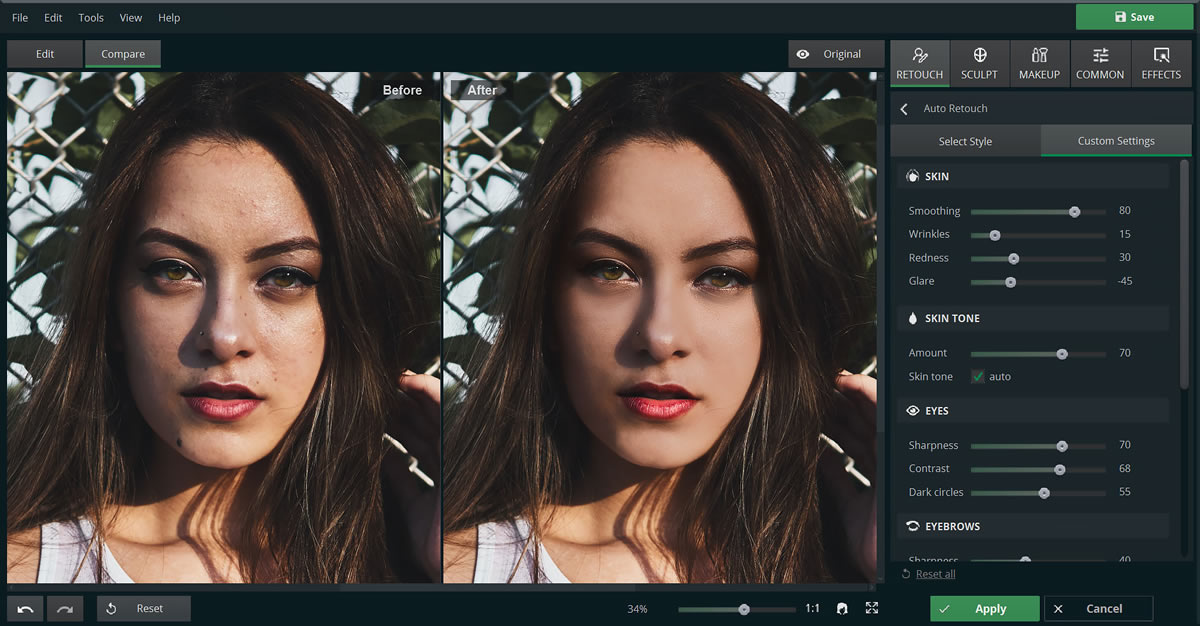
PhotoDiva is a free app that uses artificial intelligence technology to create beautiful-looking portraits quickly with one-click effects. Available for Windows computers, this portrait software requires no special skills, is easy to master, and is very easy to learn and navigate; making it perfect for complete beginners.
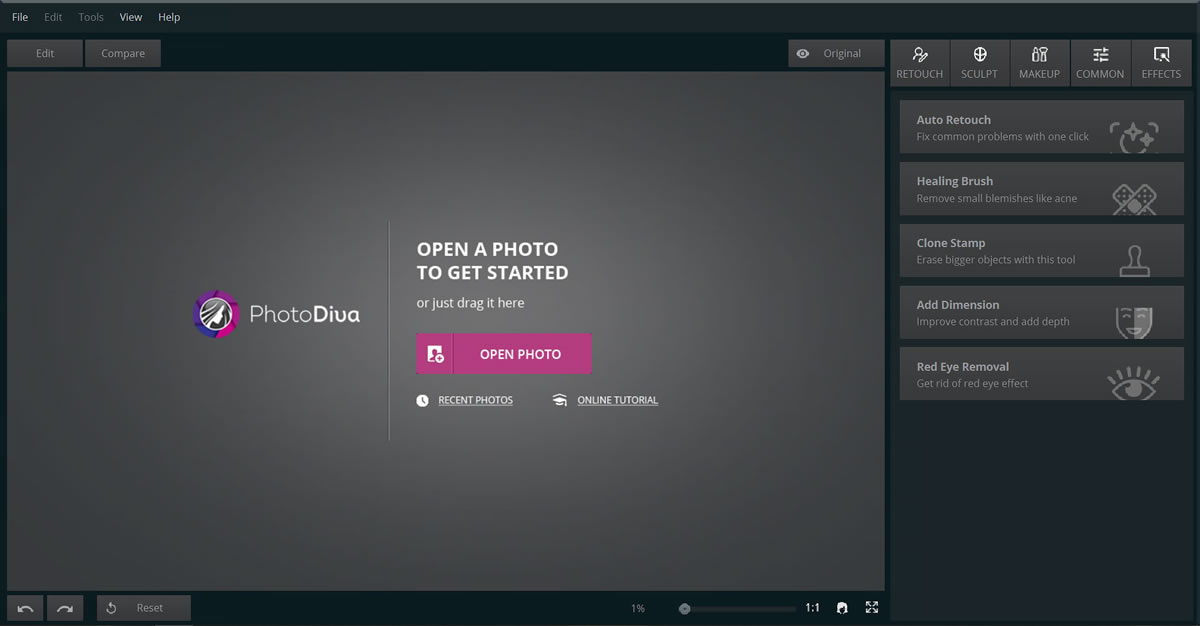
How To Easily Use PhotoDiva: A Brief Tutorial
Whether you are looking to smooth out skin issues like wrinkles, wanting to sculpt up or resize your facial features or add on glamorous makeup, PhotoDiva has plenty of one-click options to get the result you want. Let’s take a brief look at how you can easily use this free portrait editing software to create beautiful portraits.
1) Download and install
Download and install PhotoDiva for free from their website.
2) Launch the program
Launch the program and then open up the image you want to edit or drag and drop it into the program.
3) Want to Edit Skin?
In the retouch tab, choose the auto retouch option. This will give you dozens of options for smoothing the skin, brightening the lips, and clearing the eyes for example. These are ready-made presets that can be applied in an instant. If you want a custom option, use the custom settings to manually use sliders for removing wrinkles, smoothing skin, reduce redness, glare, add a healthier skin tone, and so much more! These custom settings allow you to control the strength at which these enhancements appear in your photo. You can even compare your results to see the original side-by-side the enhanced image.
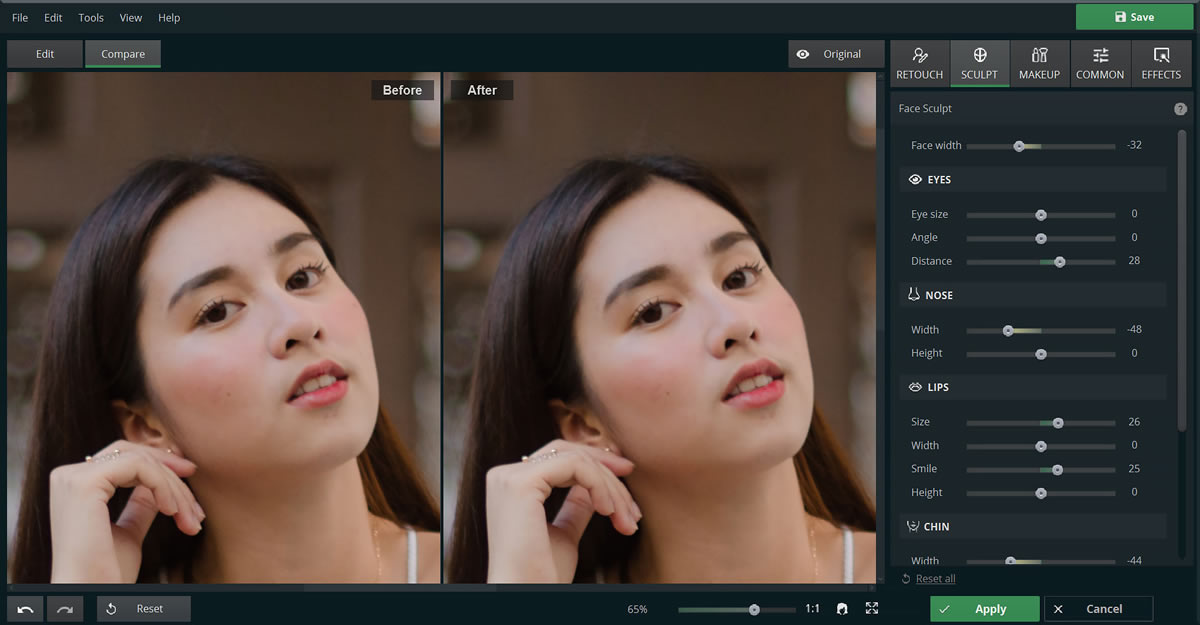
4) Want to Adjust Face Shape?
In the sculpt tab you can drag the face width slider to change the individual’s face to be narrower or wider, depending on the look you want. You can also increase the eye’s size, angle, and distance, change the nose’s width and height, and even change the size of the lips, width, height, and smile! You can also change the chin’s width and height, fix the eyebrows thickness, height, and distance from one another.
5) Remove the Little Flaws Too!
If you are prone to getting little blemishes like acne and moles, these can be removed completely with the healing brush tool. This tool is found in the retouch tab, and is extremely easy to use. You simply just change the size of the brush to match the blemish size, drag the tool over the problem area, and PhotoDiva will automatically remove the imperfections.
6) The Clone Stamp Can Remove Bigger Problem Areas.
If you have a fairly large blemish or area that you want to remove, perhaps a nose or eyebrow ring, you can use the clone stamp tool to remove it completely. The clone stamp tool is found in the retouch tab and works similarly to the healing brush, in that you change the size of the tool to match the problem area and then mark the place in which you want to copy pixels from. Then simply paste them onto the problem area to mask it.
7) Want More Dimension in the Face?
Use the dimension tool to add in highlights and shadows to the face. Simply head over to the retouch tab, choose dimensions, then use the sliders to change up the highlight and shadow amount.
8) Not Wearing Makeup?
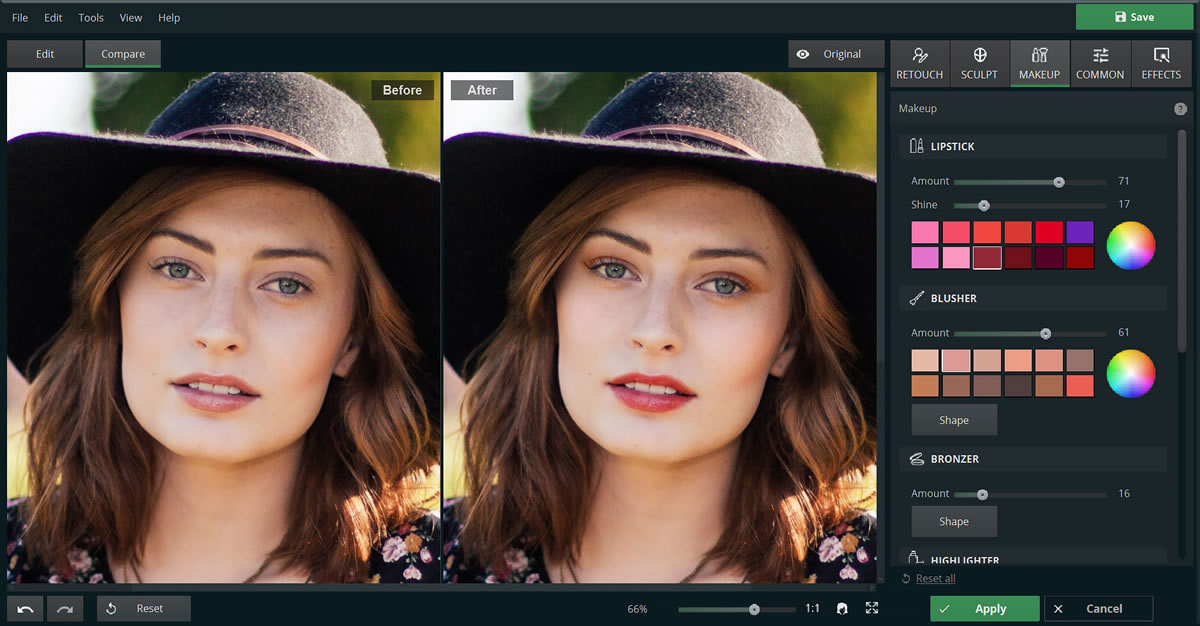
No problem! The PhotoDiva portrait editor comes with a virtual makeup feature. You can add in lipstick and blusher of any color by either selecting one of the color boxes or choosing one from the color wheel. Once you have the color you want, adjust their amount and intensity. There is also a bronzer option, highlighter, upper eyeshadow and lower eyeshadow options that allow you to adjust the area in which it is applied (shape) and intensity.
9) Want to Share the Photos to Social Media?
There’s a one-click export button integrated right into the software too! This means that as soon as you are done editing your portrait, you can export it directly to social media websites like Instagram and Facebook.
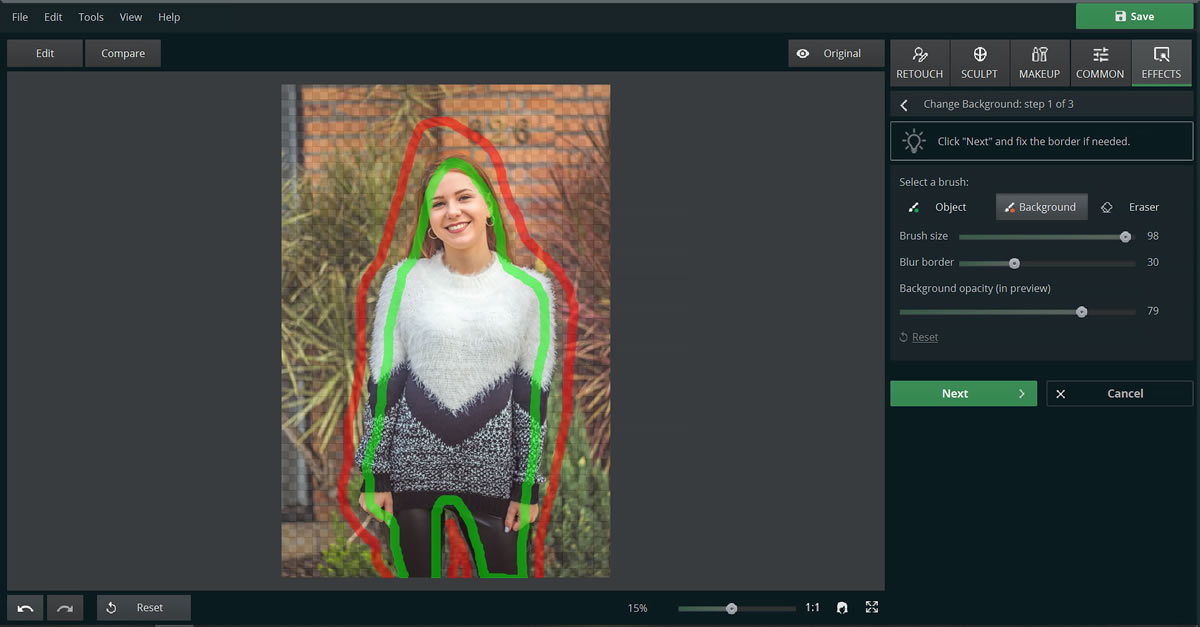
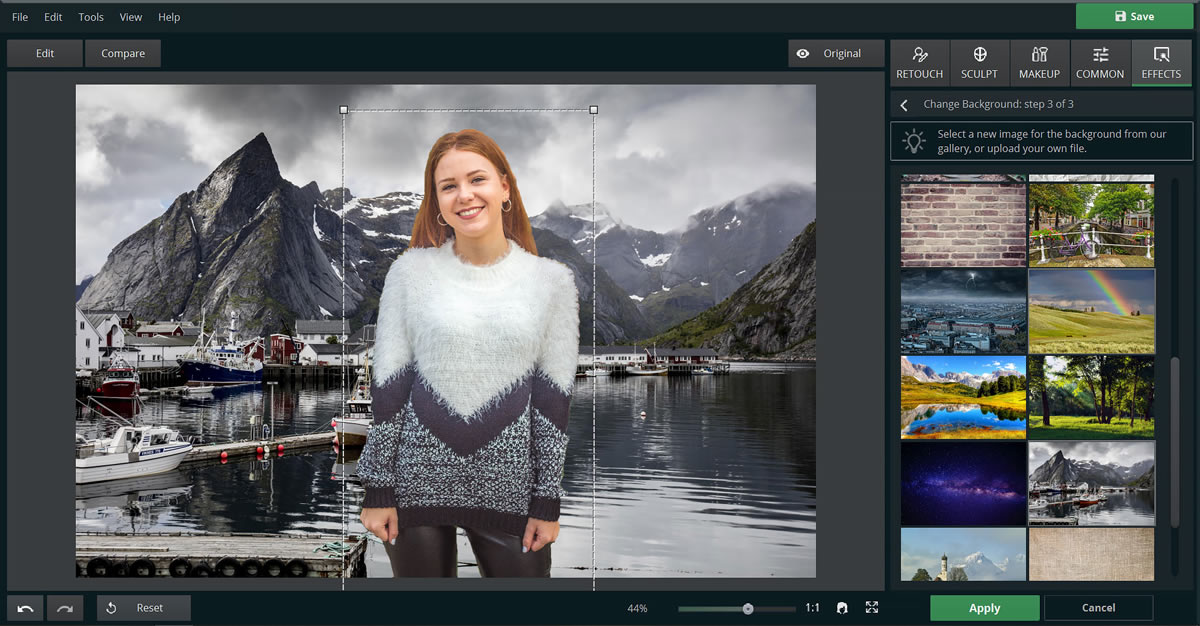
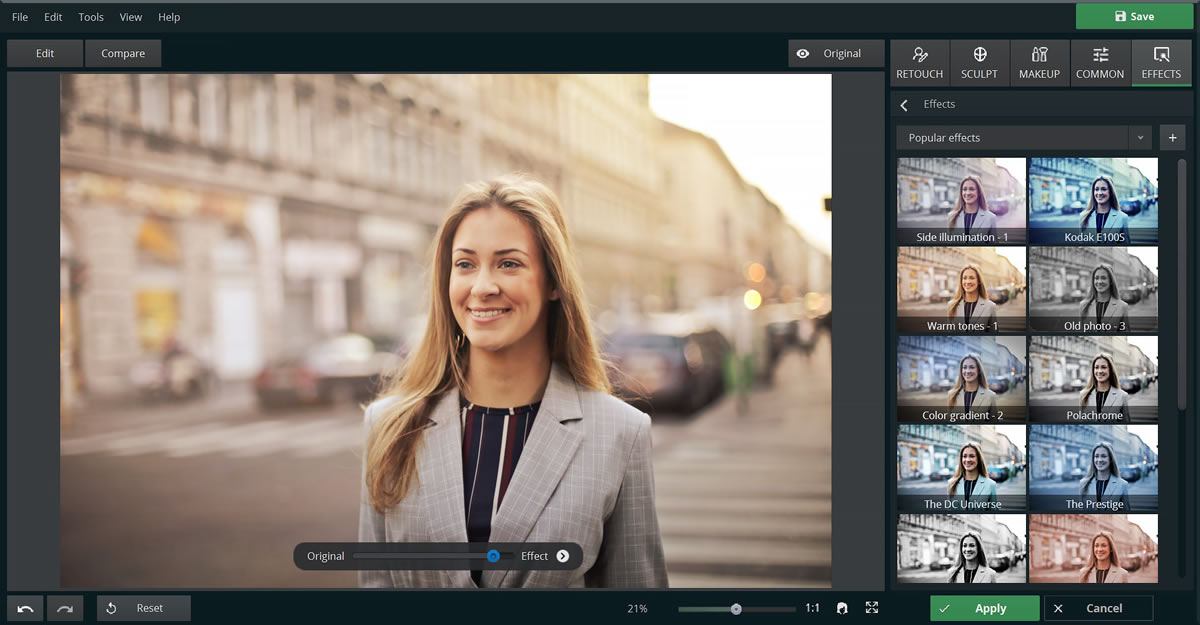
Although PhotoDiva primarily focuses on portrait software, this free portrait editor also possesses tools for basic photo enhancement. Aspects like saturation, exposure, color, brightness, shadows and others can be manually adjusted with the slider bars under the common tab. There is an auto-correction button that can be used to instantly change the quality of the photo through PhotoDiva’s AI technology. You can also remove or replace the background of your photo, blue ir, or even add effects to it with stylized one-click effects.
Wrapping It Up
This free portrait photo editor is perfect for those who do not have a lot of time to sit down and manually retouch images and it is extremely easy to learn and navigate for beginners who have no knowledge of photo editing. With over 100+ photo filter effects and the automatic photo editing capabilities of its AI-based tech, PhotoDiva will give you gorgeous portraits to share on Instagram and Facebook.
Don’t miss to check:
- 50mm vs 35mm vs 28mm: Which Focal Length Is Best
- Aperture Priority 0.1 By Siddharthan Raman
- 10 Easy And Powerful Photography Composition Tips
- 6 Mobile Photography Tips You Must Know