121clicks.com
  • Home
  • About
  • Popular
    • Inspirations
    • Showcases
    • Photo Stories
    • Tutorials
    • Art
    • Articles & Reviews
    • Interviews
    • Animals
  • Learn
  • Guides
  • Newsletter
  • Contact
No Result
View All Result
121clicks.com
  • Home
  • About
  • Popular
    • Inspirations
    • Showcases
    • Photo Stories
    • Tutorials
    • Art
    • Articles & Reviews
    • Interviews
    • Animals
  • Learn
  • Guides
  • Newsletter
  • Contact
No Result
View All Result
121clicks.com
No Result
View All Result

Digital Photography Workflow – An Overview

121clicks Team by 121clicks Team
April 18, 2020
in Articles & Reviews
1
Digital Photography Workflow
Share on FacebookShare on Twitter
Follow us on Google News Join WhatsApp Channel Subscribe Newsletter
Written by : 121clicks Team

Know more →

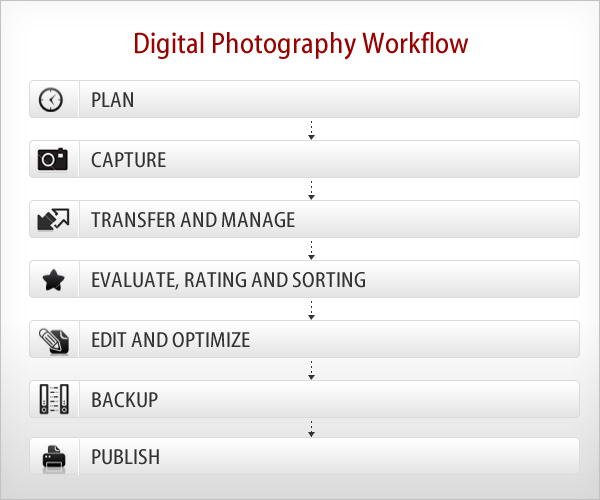
What is Digital Photography Workflow exactly? All we really want to do is take great pictures and reproduce them in the best way possible. But doing so actually involves a whole series of steps, from transferring the image files to a computer, to file naming, file format conversion, image optimization, and finally preparing images for printing or other forms of presentation.
Digital Photography Workflow - An Overview

# Step 1: Plan

  • Where, what, when, how and whom to shoot
  • Checking, cleaning, and preparing equipment
  • Take extra memory cards and backup camera
  • Set everything up, charge the batteries for the cameras and flashes and pack the kit bag
  • If you have some ideas about the shoot, take a notes and rough sketches
  • Planning for how to store images securely until you can transfer them to your computer

# Step 2: Capture

  • Determining your best exposure and composition
  • Measuring and setting white balance
  • Positioning your subject(s), or positioning yourself in the right place to shoot
  • Shoot raw, if possible. This provides the highest image quality and the most flexibility for image correction and interpretation
  • Successfully execute the shoot

# Step 3: Transfer and Manage

  • Downloading from the memory card to a portable storage device or computer
  • Logically and descriptively renaming and organizing photos for optimal accessibility
  • Storing master files that are not modified
  • Using metadata tagging

# Step 4: Evaluate, Rating and Sorting

  • After you make your photographs and transfer to your hard drives, the next thing to do is go through them, pick your favorites, and organize them into logical groups.
  • Methodically go through each batch of photos and determine the ones that have the most potential. It’s easier to do this in several rounds of looking.
  • Use the rating and labeling systems in your software to mark the ones that you like, for example give 5 Stars for the best photo, 1 Star for the average photo.
  • Take some time to evaluate your rejected photos to figure out what went wrong. You can learn a lot more from your failures than from your success.

# Step 5: Edit and Optimize

  • Sometimes your photos will look great straight out the camera. Other times they will need serious work. But generally, all photographs (especially capture in RAW format) can use some processing to help them look their absolute best.
  • Touch up images as needed like adjusting Levels, Image Crop, Sharpness, White Balance, Exposure, Shadow/Highlights, etc.
  • In order to enable non-destructive image editing in Photoshop,
    use and save layers, adjustment layers and smart objects
    to master files.
  • Copy and convert images to any required sizes and formats.
  • Add text and/or other graphics to images, as necessary.

# Step 6: Backup

  • Use multiple data backups (External Had Drive, DVD, Blu-ray Disc, Online Storage, etc.)
  • Use a 3-2-1 backup (3 copies, 2 different media, 1 stored offsite) whenever possible.
  • Clearly distinguish the primary and backup copies of your digital image files.
  • Schedule system backups to occur at appropriate places in the workflow and image life cycle.
  • Clone your system periodically to avoid lost time and lost data in the event of system drive failure.
  • Please check this article to know more about Image Storage and Backup

# Step 7: Publish

  • The final step is Printing (Canvas, Albums as per client requirement)
  • Uploading files to online galleries for display / for sales

Hope you guys like this article, Please give your feedback and further ideas in comment section.
Tags: Learning & TutorialsPhotography Tutorials
Previous Post

Food Photography Tips, Tricks, and Tutorials

Next Post

My Personal Best: Fine Art Portrait Photographer Liliia Beda

Related Posts

Ivan Chebotar Photographer
Articles & Reviews

What the Jury Sees – and What the Photographer Doesn’t

...

by 121clicks Team
February 27, 2026
Andrew Harrington: The Power of Restraint in Contemporary Fashion Photography
Articles & Reviews

Andrew Harrington: The Power of Restraint in Contemporary Fashion Photography

...

by 121clicks Team
February 19, 2026
Fujifilm X-T5 vs. Ricoh GR IV: The 2026 Travel Photography Showdown
Articles & Reviews

Fujifilm X-T5 vs. Ricoh GR IV: The 2026 Travel Photography Showdown

...

by Marcus Thorne
March 23, 2026
Top 10 Best Cameras of 2026 You Should Know
Articles & Reviews

Top 10 Best Cameras of 2026 You Should Know About Before You Upgrade Your Gear

...

by Oliver St. John
March 24, 2026
Tamron 70-180mm F2.8 Di III VC VXD G2 - A Fast Aperture Telephoto Zoom Lens
Articles & Reviews

Lens Review: Tamron 70-180mm F2.8 Di III VC VXD G2 – A Fast Aperture Telephoto Zoom Lens

...

by Laura Hawkins
March 24, 2026
Kolkata International Art Fair 2026
Articles & Reviews

Kolkata International Art Fair 2026 Opens January 10, Unlocking New Value for Sponsors

...

by 121clicks Team
December 15, 2025
Artur Ravlyk Daily Formula for World-Class Latin
Art

Inside the System: Artur Ravlyk’s Daily Formula for World-Class Latin

...

by 121clicks Team
December 12, 2025
The Flavor of Learning - Yuqing Zhang
Articles & Reviews

The Flavor of Learning – Yuqing Zhang’s Exhibition: Reimagining Restaurant Training Through AI and Design

...

by 121clicks Team
December 8, 2025
Load More
Next Post
Personal Best: Liliia Beda

My Personal Best: Fine Art Portrait Photographer Liliia Beda

Please login to join discussion

Subscribe to Our Newletter

Subscription Form

Recent Posts

  • Abstract Views: 15 Award-Winning Photos from the Garden Photographer of the Year
  • 25 Clever Street Art Photos That Feel Perfectly Made for the Spot
  • 27 Hilarious Photos of Cats Blissfully Ignoring Every Boundary You Ever Set
  • Mobile Photography Awards: 33 Stunning Black and White Photos Captured on Phones
  • Before the Selfie: 25 Mirror Self Portraits from the Early Days of Photography
121clicks.com

121clicks.com is a global platform celebrating the art of photography, showcasing inspiring works from talented photographers around the world.

Connect With Us

Recent Posts

Garden Photographer of the Year Abstract Views Winners

Abstract Views: 15 Award-Winning Photos from the Garden Photographer of the Year

April 24, 2026
Clever Street Art Photos That Feel Perfectly Made for the Spot

25 Clever Street Art Photos That Feel Perfectly Made for the Spot

April 24, 2026

Other Categories

  • Animals
  • Art
  • Articles & Reviews
  • Design
  • Funny
  • Interviews
  • Tutorials
  • About Us
  • DMCA REMOVAL
  • Privacy Policy
  • Gemini Prompts

© 2026 121Clicks.com - All rights reserved.

No Result
View All Result
  • Home
  • About
  • Popular
    • Inspirations
    • Showcases
    • Photo Stories
    • Tutorials
    • Art
    • Articles & Reviews
    • Interviews
    • Animals
  • Learn
  • Guides
  • Newsletter
  • Contact

© 2026 121Clicks.com - All rights reserved.